You ran npm install. Did you check what you got?
You described what you wanted to build. The AI wrote the code. Somewhere in that output was a package.json with a list of dependencies — express, chalk, axios, a date library, maybe a Stripe SDK. You ran npm install, everything worked. Ship day. You moved on.
Here's what the AI didn't know: three weeks before you ran that install, chalk was compromised for two hours. So was debug. So were 16 other packages the entire JavaScript ecosystem depends on. 2.6 billion weekly downloads. Two hours. Every project that ran npm install in that window got the infected version. Automatically. No warning, no prompt, no way to know.
This happened on September 8, 2025. The attackers stole crypto wallet addresses from every compromised app's users. Then came the worm: the malicious code scanned infected machines for npm credentials and used them to publish infected versions of any package the victim maintained. Each compromise became a vector to infect downstream users. Self-propagating. First of its kind in npm history. The full breakdown is here.
That was the worst-case attack. This is how you make sure it doesn't happen to you.
The risk hiding in a single character
When an AI tool generates a package.json, it uses caret ranges by default:
{
  "dependencies": {
    "debug": "^4.3.4",
    "chalk": "^5.3.0",
    "axios": "^1.6.0"
  }
}
That ^ before each version number means "this version or any compatible newer version." Run npm install today and you get the latest 4.x.x release of debug — whatever that is right now. Run it again in six months and you might get something different.
Caret ranges are npm's recommendation. They're in every tutorial. They're what the ecosystem expects. The AI isn't doing anything wrong. But they mean that if a package gets compromised after your lockfile was last generated, your next install picks it up automatically.
Pinned versions look like this:
{
  "dependencies": {
    "debug": "4.3.4",
    "chalk": "5.3.0",
    "axios": "1.6.0"
  }
}
No caret. Exact version. npm install fetches precisely that release — nothing newer, nothing different. It's not exciting, but it means the thing you tested is the thing that ships.
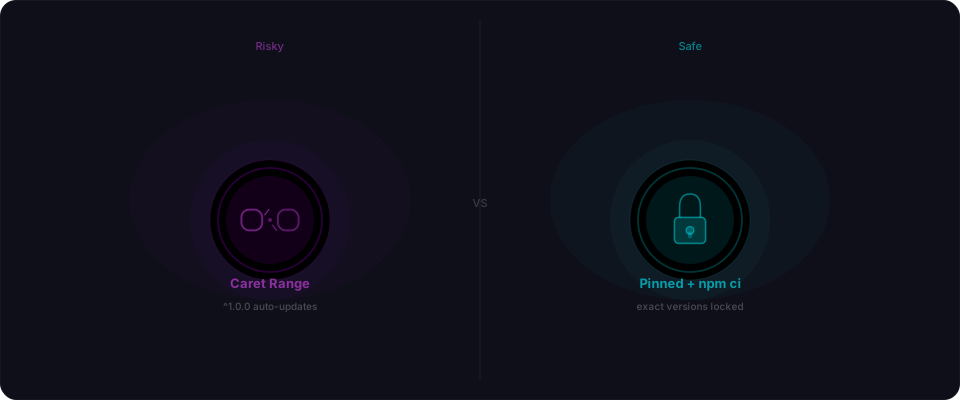
The tradeoff is real: pinned versions mean you don't automatically get bug fixes and patches. The practical answer for most vibe-coded apps is to pin your direct dependencies and update them deliberately, on your schedule, rather than whenever someone runs npm install.
Your lockfile is a security artifact
Even with caret ranges, you have a powerful tool that most fast-moving projects ignore: the lockfile.
package-lock.json (npm) or yarn.lock (Yarn) records the exact version of every package in your dependency tree — not just your direct dependencies, but every transitive dependency those packages pull in. When you generate a lockfile and commit it, you've taken a snapshot of your entire dependency tree at that moment.
The lockfile only protects you if you use it correctly.
Commit it. Every time. package-lock.json and yarn.lock belong in version control. If they're in your .gitignore, remove them now. Without a committed lockfile, every fresh install is a fresh roll of the dice.
Review lockfile diffs. When a PR updates a dependency, the lockfile diff shows every package that changed — including transitive ones you've never heard of. This is tedious, but it's the only manual way to catch unexpected additions. A PR that bumps react from 18.2 to 18.3 shouldn't also be adding a new package that installs shell scripts.
Don't regenerate it casually. Deleting node_modules and running npm install from scratch regenerates your lockfile against current registry state. If anything was compromised in the interim, you've just imported it. Treat lockfile regeneration as a deliberate act, not maintenance.
Stop npm install. Start npm ci.
This is the single most important change you can make to your CI/CD pipeline. One command. No new cost. Eliminates the entire class of "install-time surprise" attacks.
npm install reads package.json, finds compatible versions, and is designed for flexibility. It can modify your lockfile if something doesn't match. Great for development. Terrible for production — it means every deploy can potentially pull a different (newer, compromised) version than your last one, even if your package.json hasn't changed.
npm ci reads the lockfile and installs exactly what's there. It fails loudly if package.json and the lockfile are out of sync. It never modifies the lockfile. Built for automated environments where "exactly what we tested" is not optional.
In your CI pipeline, replace this:
npm install
With this:
npm ci
That's it. One command swap. If you're using Yarn:
yarn install --frozen-lockfile
Same idea — enforce exact versions. The difference: npm install means "give me whatever npm thinks is compatible right now." That could be different from last week. npm ci means "give me exactly what's in the lockfile, or fail if you can't." When the Shai-Hulud attack published malicious versions of chalk on September 8, every project running npm ci was protected. Every project running npm install in that two-hour window pulled the infected version automatically.
Better yet, do both: check your lockfile into version control AND use npm ci in CI. Combined, they mean you only install versions your team has explicitly approved.
npm audit: catch what's already flagged
npm audit checks your dependency tree against a database of known compromised and vulnerable packages. It's not a crystal ball — it won't catch a brand-new attack in the two-hour window before npm's database updates — but it catches everything else. Automatically.
After you run npm ci, add npm audit:
npm ci
npm audit --audit-level=high
The --audit-level=high flag makes the build fail only on high or critical issues. Everything else is reported but doesn't block the deploy. You adjust the threshold based on your tolerance for risk.
In GitHub Actions:
- name: Install dependencies
  run: npm ci

- name: Security audit
  run: npm audit --audit-level=high
If npm audit flags something, you have three options:
- Update the package to a patched version.
- Use
npm audit fixif npm can automatically find a safe upgrade path. - Override with
npm audit --fix --forceif you've evaluated the issue and determined it doesn't affect your code — but do this consciously, not reflexively.
The goal is to know what's flagged, not to make the check pass. Don't suppress the audit. Don't pretend the flag doesn't exist. Know your dependency risk before you ship.
Socket.dev: monitoring what npm audit misses
npm audit only knows about vulnerabilities after they've been reported and processed into the advisory database. The two-hour Shai-Hulud window happened before any advisory existed.
Socket.dev takes a different approach. Instead of checking against known bad versions, it monitors package behavior — flagging packages that newly start installing shell scripts, accessing new network addresses, or requesting filesystem permissions they didn't have before. It also monitors for typosquatting, dependency confusion attacks, and maintainer account changes.
It's free for public repositories. For private repos, there's a paid tier. The GitHub app installs in a few minutes and adds a check to every PR that touches your lockfile.
It won't catch everything. But it provides a layer of signal that sits upstream of the advisory database — behavioral analysis rather than signature matching.
If you maintain npm packages
The Shai-Hulud worm had a second payload beyond wallet theft: it scanned infected machines for stored credentials and used any npm tokens it found to publish malicious versions of packages the victim maintained. Each new victim became a vector for infecting their own downstream users.
If you publish to npm — even a small personal package — a few habits matter a lot.
Enable 2FA on your npm account. The initial Shai-Hulud attack succeeded through phishing. If the compromised maintainers had 2FA on publish actions, the attack fails even with stolen credentials. Go to npmjs.com → Account Settings → Two-Factor Authentication and enable it for both login and publishing.
Watch for .npmrc files. The worm specifically targeted .npmrc files, which often contain npm auth tokens in plaintext. Check ~/.npmrc and any project-level .npmrc files. If you have a token stored there that you don't actively need, remove it. Use npm logout to clear saved credentials when you're done with a publishing session.
Audit your published versions. If you were running npm install between September 8–9, 2025, and you maintain any packages, check whether any unexpected versions were published. Log into npmjs.com, navigate to your packages, and look at the version history. Anything you didn't publish is a confirmed compromise — unpublish it immediately and rotate your credentials.
Set up publish notifications. npm can send email notifications when a new version of your package is published. Enable this so you find out immediately if someone else publishes under your package name.
Responding to a supply chain incident
If you think you installed a compromised package, here's what to do.
Check your install logs against the incident window. For Shai-Hulud, the window was approximately 13:16–15:30 UTC on September 8, 2025. Look at your CI logs, deploy history, or local npm install timestamps. If you were in the window, assume exposure.
Rotate your npm token first. In npmjs.com → Access Tokens, revoke any existing tokens and generate fresh ones. This limits further damage from credential exfiltration even if it already happened.
Check your wallet-related code. If your app handles crypto transactions and was running in the install window, audit your transaction handling code for any address substitution logic that shouldn't be there.
Check your other stored credentials. The worm targeted anything it could find: GitHub tokens, AWS keys, .npmrc files, shell history. If your machine was potentially infected, treat all stored credentials as compromised and rotate them.
Pin and re-lock. After rotating credentials, update your package.json to pin exact versions and regenerate your lockfile from a clean state against the current registry.
Quick reference
| Habit | What it protects against | How to do it |
|---|---|---|
| Commit your lockfile | Prevents silent dependency drift between installs | Remove package-lock.json from .gitignore |
Run npm ci in CI | Enforces exact lockfile versions in automated builds | Replace npm install with npm ci in CI/CD |
npm audit --audit-level=high in CI | Catches known compromised packages before they ship | Add after npm ci in your pipeline |
| Pin direct dependencies | Prevents auto-install of new versions between lockfile refreshes | Remove ^ from versions in package.json |
| Enable 2FA on npm | Blocks publish-access phishing attacks | npmjs.com → Account Settings → 2FA |
Remove stored npm tokens from .npmrc | Prevents credential exfiltration if your machine is compromised | Run npm logout, check ~/.npmrc |
| Review lockfile diffs in PRs | Catches unexpected transitive dependency additions | Check the lockfile diff alongside package.json changes |
| Socket.dev on your repo | Behavioral detection before advisory databases catch up | Install the GitHub app at socket.dev |
Your five-step pre-deploy checklist
These habits take about 15 minutes to set up. Do them before you ship.
1. Commit your lockfile (2 minutes)
Check if package-lock.json or yarn.lock is in .gitignore. If it is, remove it. Then:
git add package-lock.json
git commit -m "commit lockfile"
git push
Every deploy should install from the committed lockfile. No exceptions.
2. Swap npm install → npm ci (1 minute)
Find everywhere you run npm install in an automated context — your CI config, your Dockerfile, your deploy script. Replace it:
# Before
npm install

# After
npm ci
One word. That's the entire change.
3. Add npm audit to CI (2 minutes)
In your GitHub Actions workflow, CircleCI config, or whatever CI you're using, add this right after npm ci:
npm ci
npm audit --audit-level=high
If it fails, fix before you ship. No overrides.
4. Pin your direct dependencies (3 minutes)
Open package.json. Look for any ^ before your direct dependencies. Remove them:
// Before
"dependencies": {
  "express": "^4.18.0",
  "axios": "^1.6.0"
}

// After
"dependencies": {
  "express": "4.18.2",
  "axios": "1.7.2"
}
Then run npm ci to update your lockfile. This prevents auto-installs of new (potentially compromised) versions between lockfile refreshes.
5. Scan your running app (5 minutes)
Run Flowpatrol against your deployed app. Paste your URL:
npm install -g @flowpatrol/cli

flowpatrol scan https://your-app.com
Or use the web dashboard at flowpatrol.ai. You're looking for exposed secrets, open API endpoints, misconfigured auth, and dependency issues that static analysis misses.
That's it. You just eliminated the entire install-time attack surface.
The September 2025 npm supply chain attack was documented by Palo Alto Unit 42, Socket Security, and CISA's advisory "Widespread Supply Chain Compromise Impacting npm Ecosystem." For the full technical breakdown, see our Shai-Hulud case study.