TL;DR
For about three hours on March 31, 2026, a fake version of axios — one of the most-used packages in the Node.js world — was live on npm. If you ran npm install during that window, there's a chance your laptop downloaded malware that steals passwords, cloud keys, and crypto wallets. The malware was clever: after it ran, it deleted its own files so a quick look around node_modules would find nothing wrong. The good news is that your project's package-lock.json file remembers what npm actually fetched, and the malware can't rewrite that. Here's the ten-minute check, what the results mean, and the exact commands to clean up if you're infected.
This is the companion to the full story of how the attackers pulled it off. If you already know the story, skip straight to "Run the detection suite" below.
Who this guide is for
Any Node.js project on your laptop that ran npm install (or yarn install, or pnpm install) between March 30 23:59 UTC and March 31 03:29 UTC, and any CI/CD pipeline that did the same. It doesn't matter whether the project is production or a weekend experiment. The malware infects the laptop, not the code — you only need to check each project to figure out which laptops need cleaning.
If you're shipping apps with Lovable, Bolt, Cursor, v0, or Claude — this is especially for you. AI-generated package.json files almost always use loose version ranges (the ^ symbol means "install this version or any newer one"), almost never commit a lockfile, and almost always deploy by running npm install fresh on each push. Those three things together are the exact path the malware walked. If even one of them is different, the attack couldn't reach you.
Run the five checks
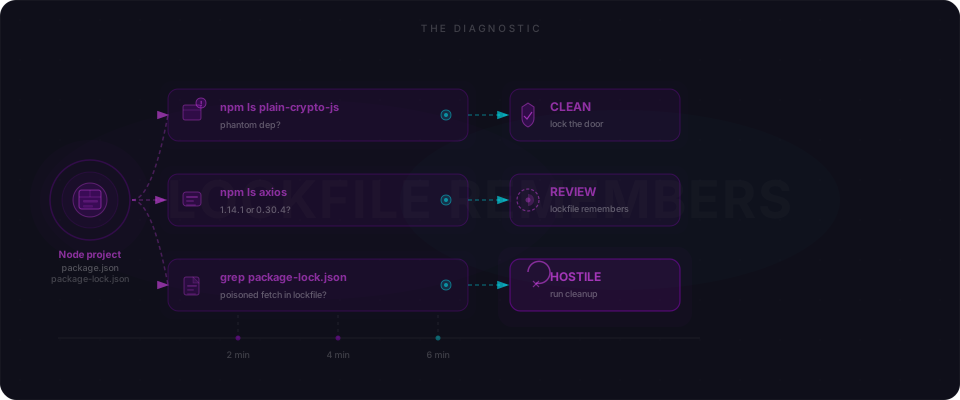
Five quick checks you can copy and paste. Each one prints either COMPROMISED or CLEAN, so there's nothing to interpret — the command tells you the answer. Run them in order. You want every check to print CLEAN — anything else means you need to do the cleanup below.
Check 1 — Look inside the lockfile
This is the most important check. Your package-lock.json is a file that records exactly which versions of every package npm actually downloaded. The malware can delete its own files and rewrite its own node_modules, but it can't rewrite a lockfile that's sitting in your Git repo. So if the lockfile mentions one of the bad versions, you know npm fetched it — even if nothing looks wrong in node_modules now.
Run this at the root of every Node project on your laptop. It checks package-lock.json, yarn.lock, and pnpm-lock.yaml all at once.
grep -HnE 'plain-crypto-js|"axios".*"(1\.14\.1|0\.30\.4)"|axios-(1\.14\.1|0\.30\.4)\.tgz' package-lock.json yarn.lock pnpm-lock.yaml 2>/dev/null \
  && echo "COMPROMISED — lockfile remembers a poisoned fetch (see matches above)" \
  || echo "CLEAN — lockfile has no trace of the poisoned versions or the phantom dep"
Expected output on a clean project:
Expected output on a compromised project:
Check 2 — Check what's installed in node_modules
npm ls axios plain-crypto-js 2>/dev/null \
  | grep -E 'axios@(1\.14\.1|0\.30\.4)|plain-crypto-js@' \
  && echo "COMPROMISED — bad version is still installed in this project" \
  || echo "CLEAN — no bad version installed in this project"
This catches projects where someone regenerated the lockfile but forgot to delete node_modules. Deleting node_modules and running npm ci won't help if the lockfile still has the bad version pinned — it'll just fetch it again. Both Check 1 and Check 2 need to come back CLEAN.
Check 3 — Look for malware files on disk
The malware drops files in OS-specific locations and sets itself up to restart on every boot. Select your operating system — the choice applies to every tabbed block on this page.
On macOS, the malware drops a file at /Library/Caches/com.apple.act.mond and sets itself up to restart every time you reboot. That file name is not used by any real Apple service — if it's on your Mac, something put it there that shouldn't have.
{ [ -f /Library/Caches/com.apple.act.mond ] || launchctl list 2>/dev/null | grep -qi 'act\.mond'; } \
  && echo "COMPROMISED — malware file or auto-start entry found" \
|| echo "CLEAN — no malware files on this Mac"And a second check for the auto-start configuration files the malware installs:
ls -la /Library/LaunchDaemons/ /Library/LaunchAgents/ ~/Library/LaunchAgents/ 2>/dev/null \
  | grep -iE 'act\.mond|com\.apple\.act' \
  && echo "COMPROMISED — auto-start file installed" \
|| echo "CLEAN — no malicious auto-start entries"Check 4 — Look for the malware running and talking to its server
Even if the original installer deleted itself, a copy of the malware is probably still running in the background and sending stolen data back to the attackers. This check looks for the running process and for any active network connection to the attackers' server.
ps aux 2>/dev/null \
  | grep -iE 'com\.apple\.act\.mond|/tmp/\.?ldd?2?\.py|system\.bat' \
  | grep -v grep \
  && echo "COMPROMISED — the malware is currently running" \
  || echo "CLEAN — no malware running in the process list"
{ netstat -an 2>/dev/null || ss -tn 2>/dev/null; } \
  | grep -E '142\.11\.206\.73|23\.254\.167\.216|:8000' \
  && echo "COMPROMISED — your laptop is actively talking to the attackers' server" \
  || echo "CLEAN — no connections to the attackers' server"
Paste-all detection suite
If you'd rather run the whole thing in one shot, paste this from the root of any Node project. It auto-detects macOS vs Linux and skips checks that don't apply. Every line prints CLEAN or COMPROMISED so a single eyeballing of the output tells you whether to keep reading.
set +e
echo ""; echo "[1/5] Lockfile forensics"
grep -HnE 'plain-crypto-js|"axios".*"(1\.14\.1|0\.30\.4)"|axios-(1\.14\.1|0\.30\.4)\.tgz' package-lock.json yarn.lock pnpm-lock.yaml 2>/dev/null \
  && echo "  COMPROMISED — lockfile hit" || echo "  CLEAN"

echo ""; echo "[2/5] Installed tree"
npm ls axios plain-crypto-js 2>/dev/null | grep -E 'axios@(1\.14\.1|0\.30\.4)|plain-crypto-js@' \
  && echo "  COMPROMISED — bad version resolved" || echo "  CLEAN"

echo ""; echo "[3/5] Malware files and auto-start entries"
if [ "$(uname)" = "Darwin" ]; then
  { [ -f /Library/Caches/com.apple.act.mond ] || launchctl list 2>/dev/null | grep -qi 'act\.mond'; } \
    && echo "  COMPROMISED — malware files found on Mac" || echo "  CLEAN"
  ls -la /Library/LaunchDaemons/ /Library/LaunchAgents/ ~/Library/LaunchAgents/ 2>/dev/null \
    | grep -iE 'act\.mond' && echo "  COMPROMISED — auto-start file installed" || echo "  CLEAN"
else
  ls /tmp/ld.py /tmp/ld2.py /tmp/.ld.py /tmp/ldd.py 2>/dev/null \
    && echo "  COMPROMISED — malware files found on Linux" || echo "  CLEAN"
  { crontab -l 2>/dev/null; ls /etc/cron.d/ /etc/systemd/system/ 2>/dev/null; } \
    | grep -iE 'ld\.py|sfrclak|act\.mond' \
    && echo "  COMPROMISED — scheduled task references the malware" || echo "  CLEAN"
fi

echo ""; echo "[4/5] Malware process currently running"
ps aux 2>/dev/null | grep -iE 'com\.apple\.act\.mond|/tmp/\.?ldd?2?\.py|system\.bat' | grep -v grep \
  && echo "  COMPROMISED — malware is running right now" || echo "  CLEAN"

echo ""; echo "[5/5] Connections to the attackers' server"
{ netstat -an 2>/dev/null || ss -tn 2>/dev/null; } | grep -E '142\.11\.206\.73|23\.254\.167\.216|:8000' \
  && echo "  COMPROMISED — your laptop is talking to the attackers' server" || echo "  CLEAN"

echo ""; echo "Done. Any 'COMPROMISED' line means you need the cleanup guide below."
Here's what you should see on a clean laptop, inside a clean Node project:
Read the verdict
Every check printed CLEAN. You're fine. Still, skip down to the "Lock the door behind you" section — you want to pin axios to a safe version and switch your CI build to npm ci so the next time something like this happens, you're not exposed.
Only Check 1 printed COMPROMISED. Your lockfile remembers a fetch that doesn't show up anywhere else on your laptop. That's exactly what this malware was designed to look like — it deletes its own traces after it runs. Treat the laptop as infected and do the full cleanup below. Then rebuild the project's lockfile from scratch on a clean machine.
Any of Checks 2–5 printed COMPROMISED. Your laptop is infected. The malware ran with access to your entire user account, which means every password and key it could reach is now in the attackers' hands. That includes: your AWS / Google Cloud / Azure credentials, your SSH keys, your npm login, your GitHub login, anything in a .env file, anything stored in your browser (including crypto wallet extensions like MetaMask), and any password your browser remembered. Do the cleanup below right now, in order, and do not skip Step 1.
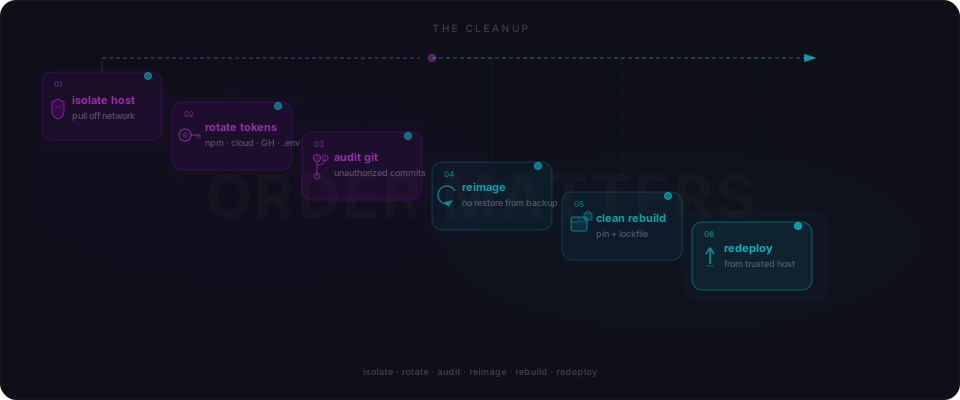
The cleanup guide (about thirty minutes)
Do these in order. Don't try to do them in parallel — each step closes a door the attacker is using, and skipping one leaves the attacker inside while you're working on the next step. Every step below has the exact commands to copy and paste.
Step 1 — Cut the laptop off the internet and block the attackers' server
First, pull the laptop off Wi-Fi and unplug any Ethernet cable. Don't restart the laptop yet — if the malware is running in memory, a restart could actually help it hide. You want it frozen in place.
If this is a server or a CI/CD runner instead of a laptop, stop the service and block all outgoing traffic at the firewall.
Next, block the attackers' server across your whole team's network — not just the infected laptop. Even machines that came back CLEAN shouldn't be able to reach this server, just in case the malware is dormant on them and waiting to activate.
Block the attackers' IP addresses using the macOS packet filter:
sudo tee -a /etc/pf.conf <<'EOF'
block drop out quick to 142.11.206.73
block drop out quick to 23.254.167.216
EOF
sudo pfctl -f /etc/pf.conf && sudo pfctl -eThen block the domain name:
echo '0.0.0.0 sfrclak.com' | sudo tee -a /etc/hostsIf you have a team, roll this out to every laptop in the team — not just the infected one.
Step 2 — Change every password and key the malware could see
Assume every password, API key, and login token on the infected laptop is gone. The malware was built to hunt for them in all the usual places — cloud credentials, SSH keys, your .env files, your browser's saved passwords, and your browser extensions (including crypto wallets like MetaMask).
The order below matters. Start with npm first, because that's the attackers' favorite next move — if they have your npm login, they can publish malware into your own packages and turn you into the next victim.
npm — revoke every token on the account, re-enable 2FA, regenerate from a trusted machine:
npm token list
npm token revoke <tokenId>   # repeat for every token in the list
npm profile enable-2fa auth-and-writes
npm logout
GitHub — log out, then revoke every token, SSH key, and connected app:
gh auth status
gh auth logout
Then open these pages in a browser on a different, clean computer and remove everything:
https://github.com/settings/tokens— delete every personal access tokenhttps://github.com/settings/keys— delete every SSH and GPG keyhttps://github.com/settings/applications— revoke every OAuth apphttps://github.com/settings/security-log— review the log for actions you didn't take (new tokens created, keys added, repo transfers, etc.)
AWS — replace your access keys:
aws iam list-access-keys
aws iam update-access-key --access-key-id <paste-the-id-from-above> --status Inactive
aws iam delete-access-key --access-key-id <paste-the-id-from-above>
aws iam create-access-key
Delete the credentials file on the infected laptop (rm -rf ~/.aws/credentials) and set up the new keys only on a clean computer with aws configure.
Google Cloud — log out and replace service account keys:
gcloud auth list
gcloud auth revoke --all
gcloud iam service-accounts keys list --iam-account=<your-service-account@project.iam.gserviceaccount.com>
gcloud iam service-accounts keys delete <key-id-from-above> --iam-account=<your-service-account@project.iam.gserviceaccount.com>
Azure — log out, then rotate secrets in the web portal:
az logout
az account clear
Go to https://portal.azure.com → App registrations → your app → Certificates & secrets, and create new client secrets from a clean computer.
SSH keys — generate a fresh one and remove the old one from every server:
# On a CLEAN computer (not the infected one), make a new key:
ssh-keygen -t ed25519 -C "$(whoami)@$(hostname) $(date +%F)"

# On every server the old key could log into, remove the old key from the authorized list:
ssh user@server 'grep -v "OLD_PUBKEY_STRING" ~/.ssh/authorized_keys > ~/.ssh/.tmp && mv ~/.ssh/.tmp ~/.ssh/authorized_keys'
Every API key in your .env files: Stripe, Supabase (including the service role key), OpenAI / Anthropic / Gemini, Resend / Postmark / SendGrid, database connection strings, Redis URLs, Vercel / Netlify / Cloudflare tokens, Sentry keys, Algolia keys. If it was in a .env file on the infected laptop, rotate it. Treat every single key as if it had been posted publicly on the internet — because effectively, it has been.
Browser sessions — delete your browser profile and sign out everywhere:
# This deletes Chrome's saved passwords and cookies:
rm -rf ~/Library/Application\ Support/Google/ChromeAdjust the path for Firefox, Arc, Brave, or Edge if that's what you use. Then sign out of every service from a clean computer — Google, GitHub, Stripe, AWS console, Supabase, Vercel, and your own product. Most services have a "sign out of all sessions" button in their security settings.
Crypto wallets — move your funds RIGHT NOW, before you do anything else in this guide:
If the infected laptop had MetaMask, Phantom, Rabby, or any browser crypto wallet, stop reading and move your funds to a new wallet with a brand-new seed phrase immediately. The malware specifically looks for wallet data, and once the attackers have your seed phrase, they have your funds forever. Don't tell yourself "there's barely anything in there" — automated wallet-draining bots regularly wait days or weeks before they strike, so an empty wallet today is no comfort. Create a fresh wallet on a clean device, transfer everything out, and treat the old wallet as gone.
Step 3 — Check your Git history for anything you didn't do
The attackers' easiest next move is to push a single sneaky commit to one of your own projects — adding a hidden install script, or a new GitHub Action — so they keep access to your code even after you lock them out of the laptop. Go through every project you can push to and check for commits you don't remember making.
# Commits made under your name during the infection window:
git log --since="2026-03-30" --until="2026-04-02" \
  --author="$(git config user.email)" --all --oneline

# New GitHub Actions workflow files or suspicious package.json changes:
git log --since="2026-03-30" --diff-filter=A --all --name-only \
  -- '.github/workflows/' 'package.json' 'postinstall*'
Any commit you don't remember making, open it and look at what it changed. Anything that adds a GitHub Action workflow, a new dependency, or a postinstall script in package.json is especially worth scrutiny. On GitHub, also visit your repo → Settings → Webhooks and Settings → Deploy keys, and delete anything you didn't create yourself.
Step 4 — Wipe and reinstall the operating system
This is the step most people want to skip, and it's the one that matters most. The malware doesn't just drop a file — it sets itself up to restart every time you reboot, in places most people don't know to look. Deleting the files you can see isn't enough. The only way to be genuinely sure it's gone is to erase the whole laptop and start fresh.
Before you start, understand one rule: do not restore from any backup taken after March 30, 2026. If the malware was on the laptop when the backup was made, restoring from that backup puts the malware back on the new install. Pretend the backup doesn't exist.
Also: before you erase anything, copy out your personal documents only to an external drive — things like photos, Word docs, PDFs, your writing. Do not copy node_modules, your .ssh folder, your browser profile, your Downloads folder, or anything in your home directory that you don't recognize by name. Those are the places the malware is most likely to be hiding a copy of itself. Your source code should already be on GitHub — pull it fresh after the reinstall, don't copy it off the infected laptop.
Wipe and reinstall
Apple Silicon Macs (M1, M2, M3, M4 — anything from late 2020 on):
- Fully shut down the Mac (Apple menu → Shut Down).
- Press and hold the power button until you see "Loading startup options". Let go.
- Click Options, then Continue. You may need to enter your password.
- From the Recovery window, pick Disk Utility → Continue.
- In Disk Utility, click View → Show All Devices in the top-left menu. Select the top-level disk (usually "Apple SSD" or similar), then click Erase.
- Name it anything. Set Format to APFS and Scheme to GUID Partition Map. Click Erase.
- Quit Disk Utility and pick Reinstall macOS from the Recovery window. Follow the prompts. It will download a fresh copy of macOS from Apple and install it.
- When setup asks whether to transfer data from another Mac or a Time Machine backup, choose Don't transfer any information now. You're starting from scratch on purpose.
Intel Macs (pre-2020):
- Shut down the Mac.
- Turn it on and immediately hold Command-R until you see the Apple logo.
- From the Recovery window, pick Disk Utility → Continue.
- Erase the disk as above (APFS / GUID Partition Map).
- Quit Disk Utility → Reinstall macOS → follow the prompts → decline to restore from a backup.
After the reinstall, reinstall apps manually from the Mac App Store or directly from each vendor's website. Do not run any installer file you copied off the infected Mac.
After the reinstall (all platforms)
- Run your operating system's updater to get the latest security patches.
- Install apps one at a time, and only from the official website or app store for each one. Don't re-download from a link in your old email or shell history.
- When you log back into services, create new passwords for anything the old browser had saved (you already rotated API keys in Step 2, but web passwords need a second pass).
- Before you connect anything from your old backup drive, scan it for malware on the new install with a tool like Malwarebytes (free version is fine) or your OS's built-in scanner.
Yes, this is tedious. It's also the only way to be sure the attackers don't own your laptop anymore.
Step 5 — Rebuild your project clean, on a different computer
On the freshly reinstalled laptop (or on a different clean computer), get a fresh copy of your project and rebuild the dependency tree from scratch.
# Download a fresh copy of the project from GitHub.
# Do NOT copy it off the infected laptop — go get it from GitHub directly.
git clone https://github.com/you/your-repo.git clean-rebuild
cd clean-rebuild

# Delete any lockfile that came with the project and any node_modules folder
rm -rf node_modules package-lock.json yarn.lock pnpm-lock.yaml

# Pin axios to an exact, safe version — no ^ or ~ allowed
npm pkg set dependencies.axios="1.14.2"

# Also add a safety override that blocks the bad version everywhere in the tree
npm pkg set overrides.axios="1.14.2"
npm pkg set overrides.plain-crypto-js="npm:dry-uninstalled-package@*"

# Fresh install — rebuilds the lockfile from scratch
npm cache clean --force
npm install

# Double-check the new lockfile is clean
grep -HnE 'plain-crypto-js|"axios".*"(1\.14\.1|0\.30\.4)"' package-lock.json \
  && echo "STILL COMPROMISED" || echo "CLEAN lockfile"

# Commit both files together and push
git add package.json package-lock.json
git commit -m "security: pin axios to 1.14.2 and block plain-crypto-js"
git push
Step 6 — Redeploy from the clean computer, not the old one
Push your new deploy from the clean computer you rebuilt on in Step 5, or from a fresh build server. Do not copy files from the infected laptop across. Do not copy the old node_modules folder. Do not rerun a command from the shell history on the infected laptop. Fresh everything — fresh code, fresh install, fresh deploy, fresh API keys.
If any of your CI/CD servers could have run npm install during the infection window, rebuild the CI servers from scratch too — not just the app. The same malware could be running on them.
Lock the door behind you
Three changes stand between your next build and the next three-hour window. Make them before your next deploy.
Pin your versions — drop the ^ symbol. In package.json, write exact version numbers, not ranges:
{
  "dependencies": {
    "axios": "1.14.2"
  }
}
No ^, no ~. The ^ symbol means "this version or any newer one", which is exactly what the attackers took advantage of — their new fake version was automatically "newer" than yours, so npm installed it. An exact version number (1.14.2, not ^1.14.2) refuses to auto-upgrade. If an AI tool regenerates this file and puts the ^ back, change it back and tell the AI not to.
Commit your lockfile. The package-lock.json file (or yarn.lock / pnpm-lock.yaml) is the file that records the exact versions npm downloaded. It belongs in your Git repo, checked into every change, reviewed like code. Anyone who tells you the lockfile is "noise in pull requests" has never had to clean up after a supply-chain attack.
Switch npm install to npm ci in your build scripts. One character, opposite behavior:
npm install is what got people infected on March 31. npm ci would have refused to install the bad version because it wasn't in the lockfile. Find every build script, GitHub Action, Docker file, and deploy config that uses npm install and change it to npm ci. In most cases that's literally the only edit.
Belt and suspenders — block the bad versions at the project level. If you're worried that a package you don't control will pull in the bad axios behind your back, add an overrides block to package.json:
{
  "overrides": {
    "axios": "1.14.2",
    "plain-crypto-js": "npm:dry-uninstalled-package@*"
  }
}
The first line forces axios to be exactly 1.14.2 no matter who asks for it. The second line hijacks any request for plain-crypto-js and replaces it with a harmless placeholder package. It's two lines and takes ten seconds, and it means no sub-dependency can sneak the bad version back in.
References
- The axios maintainer had 2FA enabled. North Korea took his npm account anyway. — the full story of how the attackers pulled it off, from the fake Microsoft Teams update to the 2FA bypass.
- Google Threat Intelligence — North Korea-linked attacker compromises the axios npm package
- Huntress — The axios supply chain attack — source of the "135 infections, first one 89 seconds after publish" numbers.
- Datadog Security Labs — Axios npm supply chain compromise — the cleanest public timeline of what happened and when.
- Elastic Security Labs — Inside the axios malware — deep technical breakdown of the malware itself, including the file paths used on each operating system.
- Socket — Automated detection of the fake
plain-crypto-js - StepSecurity — Timeline and attack details
- axios/axios issue #10604 and issue #10636 — the original disclosure thread and the maintainer's own explanation of what happened.