Everything works. That's the problem.
You built the app. Firebase is wired up. Data flows in, data flows out. There are no permission errors, no auth failures, no red banners. The app feels ready to ship.
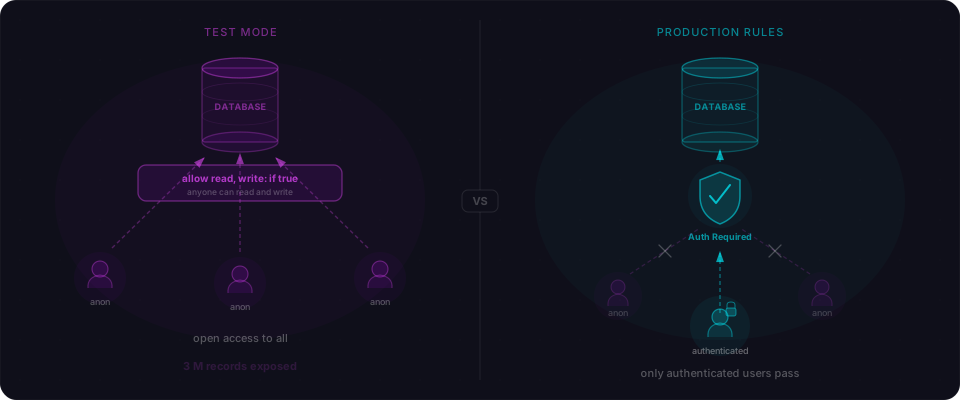
"Everything works" is what Firebase Test Mode is designed to deliver. No friction during development — because there are no security rules checking anything. Your database is open to the entire internet, and nothing in your normal workflow will tell you.
Three recent breaches trace back to this exact starting point. Cal AI lost 3.2 million health records, dates of birth, and 4-digit PINs to BreachForums in March 2026. Tea exposed 72,000 images including 13,000 government IDs and 1.1 million private messages in July 2025. A 2024–2025 sweep of over 900 sites found 125 million user records — 19 million of them plaintext passwords — all sitting open on misconfigured Firebase instances.
Same rule. Same mistake. Three completely different apps.
Why Test Mode ships to production
Firebase gives you a choice when you create a new project: locked-down rules, or Test Mode. Test Mode is one click. It works immediately. And it looks like this:
// Firestore Test Mode — what ships by default
rules_version = '2';
service cloud.firestore {
  match /databases/{database}/documents {
    match /{document=**} {
      allow read, write: if true;
    }
  }
}
That single rule says: anyone, anywhere, no authentication required, can read or write any document in your database. It is not a development sandbox. It is your production database, open to the internet.
Firebase does warn you — a yellow banner appears in the Console Rules tab when your database is public. But that banner only shows if you visit the Rules tab. Deploy via CLI, scaffold with Lovable or Bolt, build with Cursor? You may never see it. There's no email alert. No deployment blocker. No "are you absolutely sure?"
AI scaffolding tools compound the problem. When Lovable, Bolt, or Cursor generate a Firebase app, they wire up reads, writes, queries, and mutations. They don't write security rules. The app works perfectly because the database is open — and the AI has no way to distinguish "works" from "works securely."
The three surfaces nobody covers
Here's what most Firebase tutorials skip: Firebase has three separate storage products, and each has its own rules file. Securing one does not secure the others.
| Product | What it stores | Where rules live | Common mistake |
|---|---|---|---|
| Firestore | Structured documents (JSON) | Firestore → Rules tab | Test mode default never changed |
| Realtime Database | JSON tree (original Firebase DB) | Realtime Database → Rules tab | Assumed same as Firestore; never checked |
| Storage | Files, images, uploads | Storage → Rules tab | Database secured but Storage forgotten entirely |
Tea is the canonical example of the third row. The app's database rules had been secured — someone had checked them. But Storage is a different tab, a different product, and a different rules file. The check stopped one step short.
The Storage bucket — where 13,000 government IDs, 59,000 profile photos, and 1.1 million messages lived — shipped with the default open configuration:
// Firebase Storage default (Test Mode) — what Tea shipped:
rules_version = '2';
service firebase.storage {
  match /b/{bucket}/o {
    match /{allPaths=**} {
      allow read, write: if true;
    }
  }
}
That's one line that made 72,000 files downloadable by anyone who knew the bucket URL. The database rules didn't matter. Storage had its own open door, and nobody had looked for it.
Minimum viable rules by app type
You don't need complex rules to be safe. You need a locked-down default with specific access opened only where you actually need it. Start with if false at the root. Open access explicitly. Never the other way around.
| App type | Minimum Firestore rule | Minimum Storage rule |
|---|---|---|
| Consumer / social | Auth required for reads; owner-only for writes | request.auth.uid == userId on user files |
| Health / fitness | Owner-only read and write; no public collections | No client reads for health data — Admin SDK only |
| Identity verification | Server-side only (allow read: if false) | Gov IDs: write once, allow read: if false always |
| SaaS / multi-tenant | Auth + org membership check on every collection | Signed URLs served server-side; no direct client access |
Consumer app — user profiles private, public content readable:
rules_version = '2';
service cloud.firestore {
  match /databases/{database}/documents {

    match /users/{userId} {
      allow read, write: if request.auth != null
                         && request.auth.uid == userId;
    }

    match /posts/{postId} {
      allow read: if true;
      allow write: if request.auth != null
                   && request.auth.uid == resource.data.authorId;
    }

    // Deny everything not explicitly opened
    match /{document=**} {
      allow read, write: if false;
    }
  }
}
Health app — no public reads, no cross-user access, nothing writable without a session:
rules_version = '2';
service cloud.firestore {
  match /databases/{database}/documents {

    match /records/{userId}/{document=**} {
      allow read, write: if request.auth != null
                         && request.auth.uid == userId;
    }

    // Deny everything not explicitly opened
    match /{document=**} {
      allow read, write: if false;
    }
  }
}
Identity verification — government IDs and verification selfies should never be readable from the client. Read them server-side via the Admin SDK only:
// Firebase Storage rules for an identity verification app
rules_version = '2';
service firebase.storage {
  match /b/{bucket}/o {

    // Gov IDs and selfies: write once on upload, never client-readable
    match /verifications/{userId}/{file} {
      allow read: if false;
      allow write: if request.auth != null
                   && request.auth.uid == userId;
    }

    // Profile photos: any authenticated user can view, only owner can update
    match /profiles/{userId}/{file} {
      allow read: if request.auth != null;
      allow write: if request.auth != null
                   && request.auth.uid == userId;
    }

    // Deny everything else
    match /{allPaths=**} {
      allow read, write: if false;
    }
  }
}
The pattern is consistent: allow read: if false for anything that should only be read server-side. Once a user uploads an ID image, that image gets processed and locked. An attacker with any valid Firebase token shouldn't be able to read another user's government ID — and with allow read: if false, they can't.
The 60-second test: check all three surfaces
Check if your Firebase app is open right now. Run each of these — one per product — replacing YOUR-PROJECT-ID with your actual project ID.
Realtime Database:
curl "https://YOUR-PROJECT-ID.firebaseio.com/.json"
Firestore:
curl "https://firestore.googleapis.com/v1/projects/YOUR-PROJECT-ID/databases/(default)/documents/users"
Storage (substitute a real file path from your bucket):
curl -o /dev/null -s -w "%{http_code}" \
  "https://firebasestorage.googleapis.com/v0/b/YOUR-PROJECT-ID.appspot.com/o/users%2Ftest.jpg?alt=media"
What you want to see for each:
If any of those tests returns data instead of a permission error, that surface is open.
Five steps to audit right now
You built something real. Now make it bulletproof.
-
Open the Firebase Console and visit every Rules tab separately. Firestore, Realtime Database, and Storage are three different tabs with three different rule sets. Check all three. If you see
allow read, write: if trueon a wildcard match at the root level, fix it before anything else. -
Run the 60-second test above. Copy your project ID, run the three curl commands, and read the responses. A permission error on all three means your rules are active. Anything else means data is currently public.
-
Search your rules for
if true. Ifif trueappears on a catch-all pattern like/{document=**}or/{allPaths=**}, you have Test Mode active on that surface. Every document or file in that path is readable by anyone on the internet. -
Check Storage separately — even if you secured Firestore. If your app accepts any file uploads — avatars, documents, verification photos, anything — open the Storage Rules tab and verify it's not on the default open configuration. This is the step Tea missed, and it's the most commonly skipped step.
-
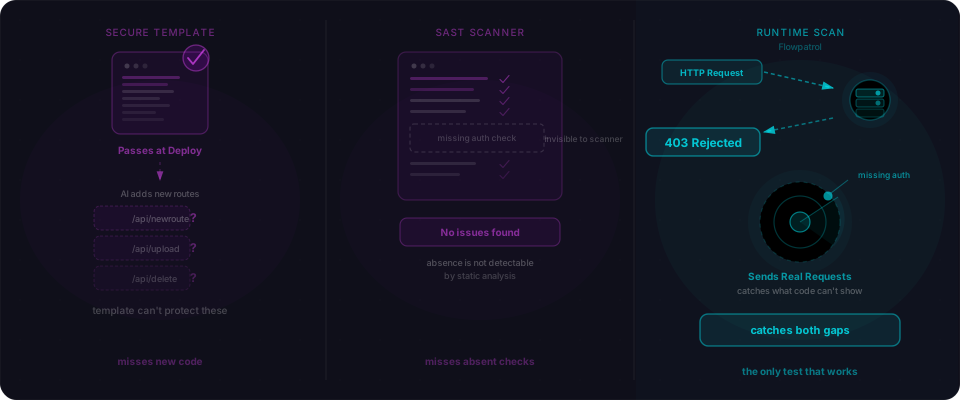
Scan your full app. Open Firebase rules are one check among many. Flowpatrol finds them automatically alongside missing auth on API routes, exposed secrets, and misconfigured backends. Paste your URL and see what comes back — before your users do.
Sources: Cal AI breach — Kiteworks, March 2026; Tea App breach — TechCrunch, July 26, 2025; NPR, August 2, 2025; Firebase mass misconfiguration — SecurityWeek, March 2024; The Register, March 2024.