Launch day playbook
Domain, DNS, SSL, and go-live in one sitting.
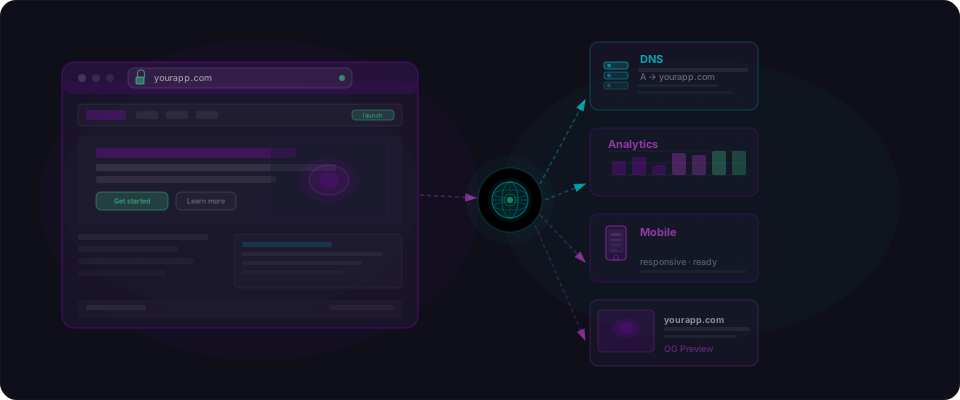
The final mile from deployed app to shareable URL. Custom domain, HTTPS, loading speed, social previews, and the monitoring you need before you post on Product Hunt.
0/14
complete
Section 01
Domain & DNS
Your app lives at a random *.vercel.app address. Give it a real name before you share the link.
0/4
complete
- 01
Register a domain
High5 minBuy a domain from Namecheap, Cloudflare Registrar, or Google Domains. Pick a .com if you can. .co, .io, and .dev are solid alternatives. Avoid obscure endings like .biz and .xyz — spam filters flag them and users trust them less.
- 02
Point your domain at your hosting platform
Critical5 minYour hosting platform (Vercel, Netlify, Railway) gives you one or two DNS records to add at your domain registrar. Copy the values they show, paste them into the DNS settings at your registrar, save. DNS propagation usually completes in under 10 minutes.
- 03
Verify HTTPS is active
Critical2 minModern hosting platforms provision an SSL certificate automatically the moment you add a domain — it usually takes a minute or two. Open https://yourapp.com (with the `s`) and confirm the connection is secure. If you hit a "Not Secure" warning, give it another few minutes; if it persists past half an hour, double-check your DNS records.
- 04
Set a canonical URL (with or without www)
Medium2 minDecide whether your canonical URL is yourapp.com or www.yourapp.com. The other version should redirect to your chosen one. Most hosting platforms set this up automatically when you add both. Confirm by opening each version — they should land on the same URL.
Section 02
Performance basics
Fast apps convert better. These are the easy wins before your first real user.
0/3
complete
- 05
Optimize your images
High10 minA single unoptimized hero image can add 3 seconds to your load time. Use the Next.js Image component (it handles resizing and modern formats like WebP automatically), or convert your assets to WebP/AVIF by hand. Only the images visible on first paint need to load immediately — everything else can defer until the user scrolls.
- 06
Run a Lighthouse audit
Medium5 minLighthouse is the performance auditor built into Chrome. Open your site in Chrome, right-click → Inspect → Lighthouse tab → Generate report. Aim for 80+ on Performance and Best Practices. The top three fixes are almost always oversized images and render-blocking third-party scripts.
- 07
Add loading states and error boundaries
High10 minAI tools skip loading states by default. Users click a button, see a blank screen, assume the app is broken. Add skeleton loaders or spinners while data fetches, and a global error boundary that shows a "Something went wrong" fallback instead of a white screen.
Section 03
SEO & social previews
Make your app look sharp when someone shares the link on Twitter, Slack, or Discord — and when it shows up in Google.
0/3
complete
- 09
Design your Open Graph image (1200×630)
Medium10 minThe preview image that appears when your URL is pasted into Twitter, Slack, or Discord. Design it in Figma or Canva, or generate one programmatically with vercel.com/og. Dark background, product wordmark, and a single-line tagline is a reliable template. Save the result as `og-image.png` in `public/`.
- 10
Add a favicon and app icon
Medium3 minDrop `favicon.ico` into your `public/` folder for the browser tab icon. Add `apple-touch-icon.png` (180×180) for iOS home-screen icons, and a 512×512 PNG if you ever plan to ship a PWA manifest. Generators like realfavicongenerator.net produce the full set from a single source image.
Section 04
Go-live checks
The final sanity checks before you post the link. Do these in order.
0/4
complete
- 11
Run a full signup smoke test
Critical5 minOpen an incognito window. Sign up with a fresh email. Confirm the verification email arrives. Click the link. Complete onboarding. Use your core feature end to end. Anything that breaks here breaks for every new user — fix it before you ship the link.
- 12
Test on a real phone
High5 minOpen your app on your actual device — not the responsive preview in DevTools. Real phones surface bugs the preview misses: tap targets too small, layout overflow, buttons hidden behind the bottom bar. Walk through signup, navigation, and your core flow.
- 13
Set up uptime monitoring
High3 minPoint BetterStack, UptimeRobot, or Checkly (all free for basic use) at the `/api/health` endpoint from the prototype-to-production guide. They'll ping it every minute and alert you — email, Slack, or SMS — the moment your app stops responding.
Domain & DNS
Your app lives at a random *.vercel.app address. Give it a real name before you share the link.
Register a domain
Buy a domain from Namecheap, Cloudflare Registrar, or Google Domains. Pick a .com if you can. .co, .io, and .dev are solid alternatives. Avoid obscure endings like .biz and .xyz — spam filters flag them and users trust them less.
A *.vercel.app URL reads "side project." A custom domain reads "real product." It also matters for email deliverability and for showing up in Google results.
Point your domain at your hosting platform
Your hosting platform (Vercel, Netlify, Railway) gives you one or two DNS records to add at your domain registrar. Copy the values they show, paste them into the DNS settings at your registrar, save. DNS propagation usually completes in under 10 minutes.
Verify HTTPS is active
Modern hosting platforms provision an SSL certificate automatically the moment you add a domain — it usually takes a minute or two. Open https://yourapp.com (with the `s`) and confirm the connection is secure. If you hit a "Not Secure" warning, give it another few minutes; if it persists past half an hour, double-check your DNS records.
# Quick sanity check — should return HTTP/2 200:
curl -sI https://yourapp.com | head -1

# Certificate issues almost always resolve by waiting a few minutes.
# Vercel, Netlify, and Railway all provision certificates for free.
Set a canonical URL (with or without www)
Decide whether your canonical URL is yourapp.com or www.yourapp.com. The other version should redirect to your chosen one. Most hosting platforms set this up automatically when you add both. Confirm by opening each version — they should land on the same URL.
Performance basics
Fast apps convert better. These are the easy wins before your first real user.
Optimize your images
A single unoptimized hero image can add 3 seconds to your load time. Use the Next.js Image component (it handles resizing and modern formats like WebP automatically), or convert your assets to WebP/AVIF by hand. Only the images visible on first paint need to load immediately — everything else can defer until the user scrolls.
// Next.js — the Image component auto-optimizes and lazy-loads.
import Image from 'next/image';

// Above the fold — preload it.
<Image
  src="/hero.png"
  alt="Hero image"
  width={1200}
  height={630}
  priority
/>

// Below the fold — lazy-loaded by default. No extra config.
<Image
  src="/feature.png"
  alt="Feature screenshot"
  width={800}
  height={400}
/>
Run a Lighthouse audit
Lighthouse is the performance auditor built into Chrome. Open your site in Chrome, right-click → Inspect → Lighthouse tab → Generate report. Aim for 80+ on Performance and Best Practices. The top three fixes are almost always oversized images and render-blocking third-party scripts.
Done with the guide?
A checklist tells you what to do. A scan proves you did it. Paste your URL and verify everything in minutes.